
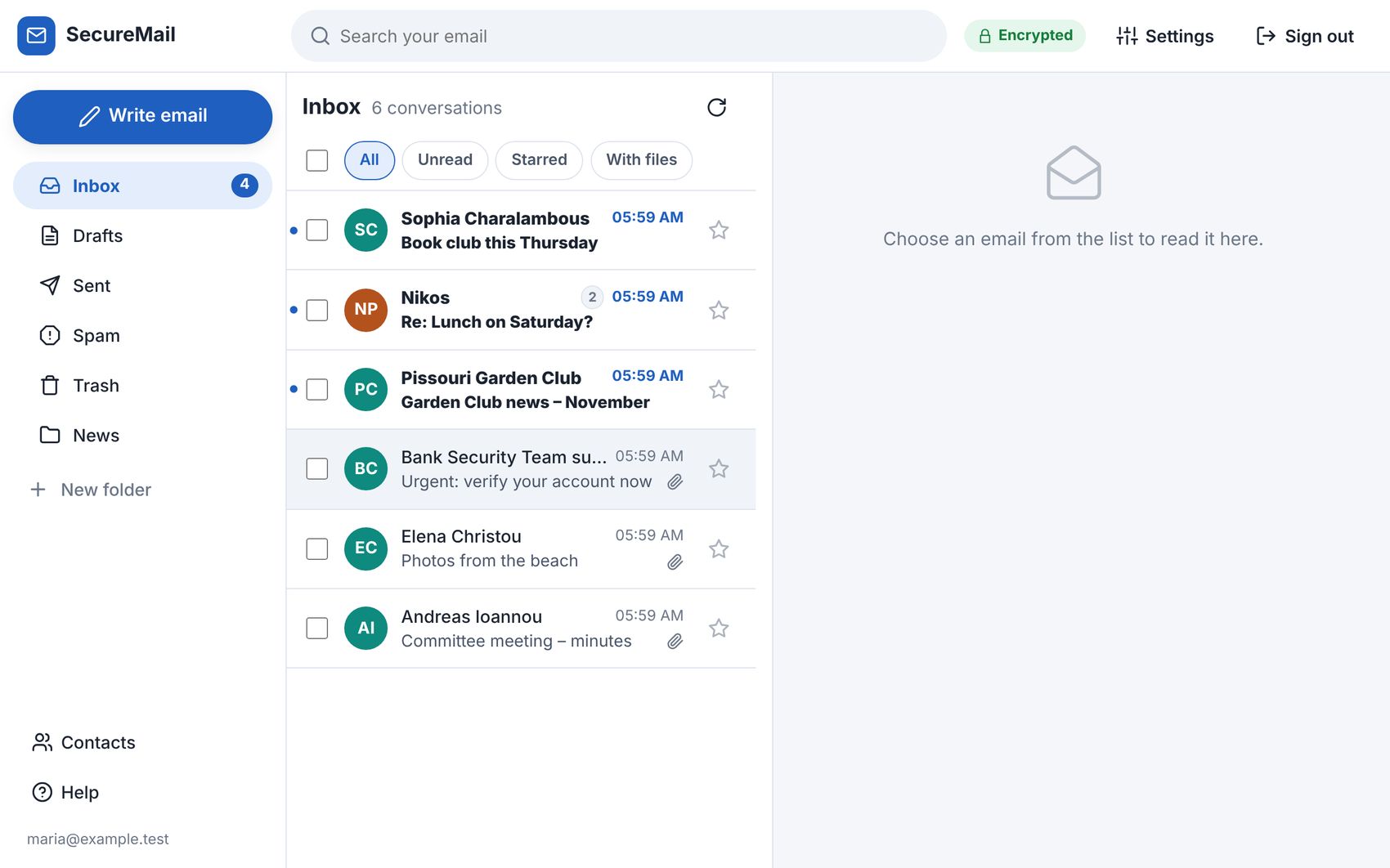
SecureMail is a webmail client: the page you open in your browser to read and send email from your own mailboxes. You put it on your own web space, point it at your mail server, and everyone with a mailbox on that server can use it.
I wrote it because the webmail that comes with most hosting is fine for a technical person and hard work for everyone else. I wanted something my family and friends could use without a manual, that was safe by default, and that had the things I kept bolting on built in from the start. It’s free.
A direct replacement for Roundcube
Most hosting, including anything run with Plesk or cPanel, gives you Roundcube. To be fair to it, Roundcube is still maintained: it had a security update this very week. But it’s an old design, much of what people want comes as separate plugins, and it has needed a steady stream of security fixes, so you’re relying on your host to keep up.
SecureMail can take its place without moving a single email:
- It works with the mailboxes you already have. It reads email over IMAP and sends it over SMTP, so your Inbox, Sent, folders and phone stay exactly as they are.
- People sign in with the same email address and password.
- Your address book comes with you: export it from Roundcube as a vCard file and import it into SecureMail (Gmail, Outlook, Apple and CSV files work too).
- Filters you made in Roundcube keep working. SecureMail includes them rather than throwing them away.
- You can run both side by side while people try it.
And then there’s a lot more in the box.
What it does
Easy to use
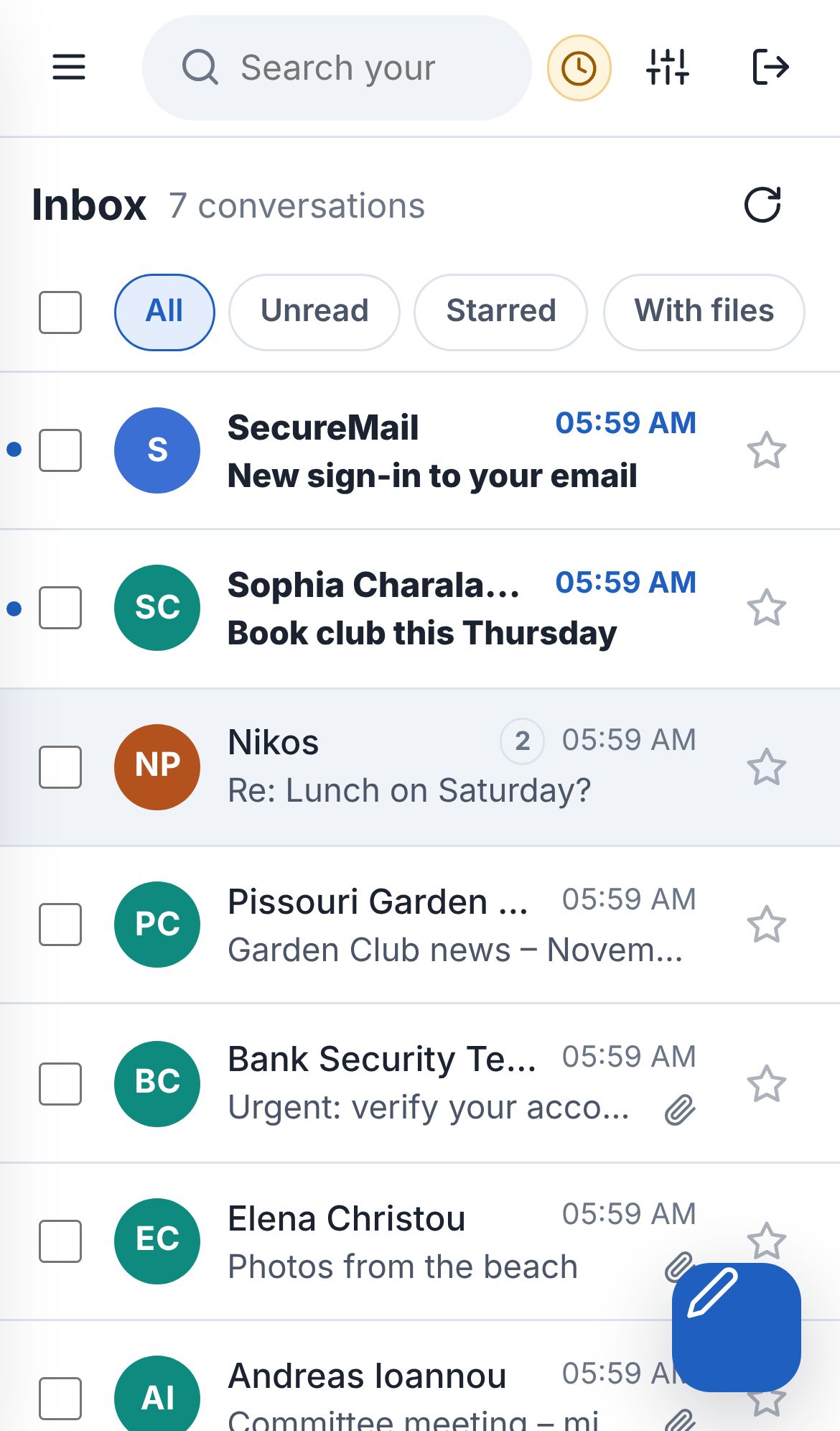
- Big, clearly labelled buttons, plain-language messages, and Undo for delete, move, spam and even for sending.
- Reminders when you mention an attachment but forgot it, or send without a subject. Drafts save themselves.
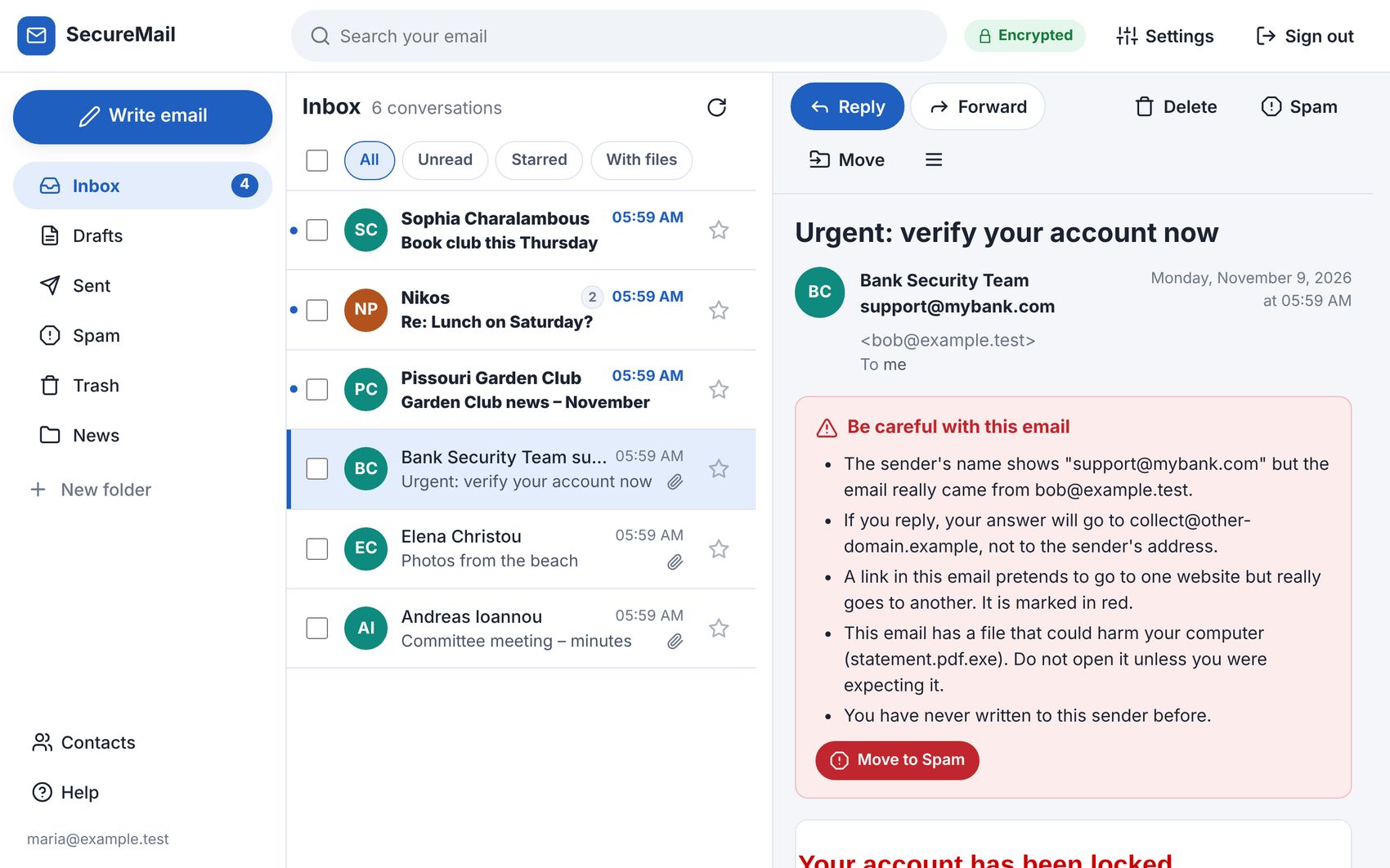
- Conversations: replies are grouped together, with your own replies from Sent shown alongside.
- Notifications when new email arrives while the webmail is open in the background, and the unread count in the browser tab.
- Text size, light and dark colours, and it works properly on phones and tablets.
Safe by default
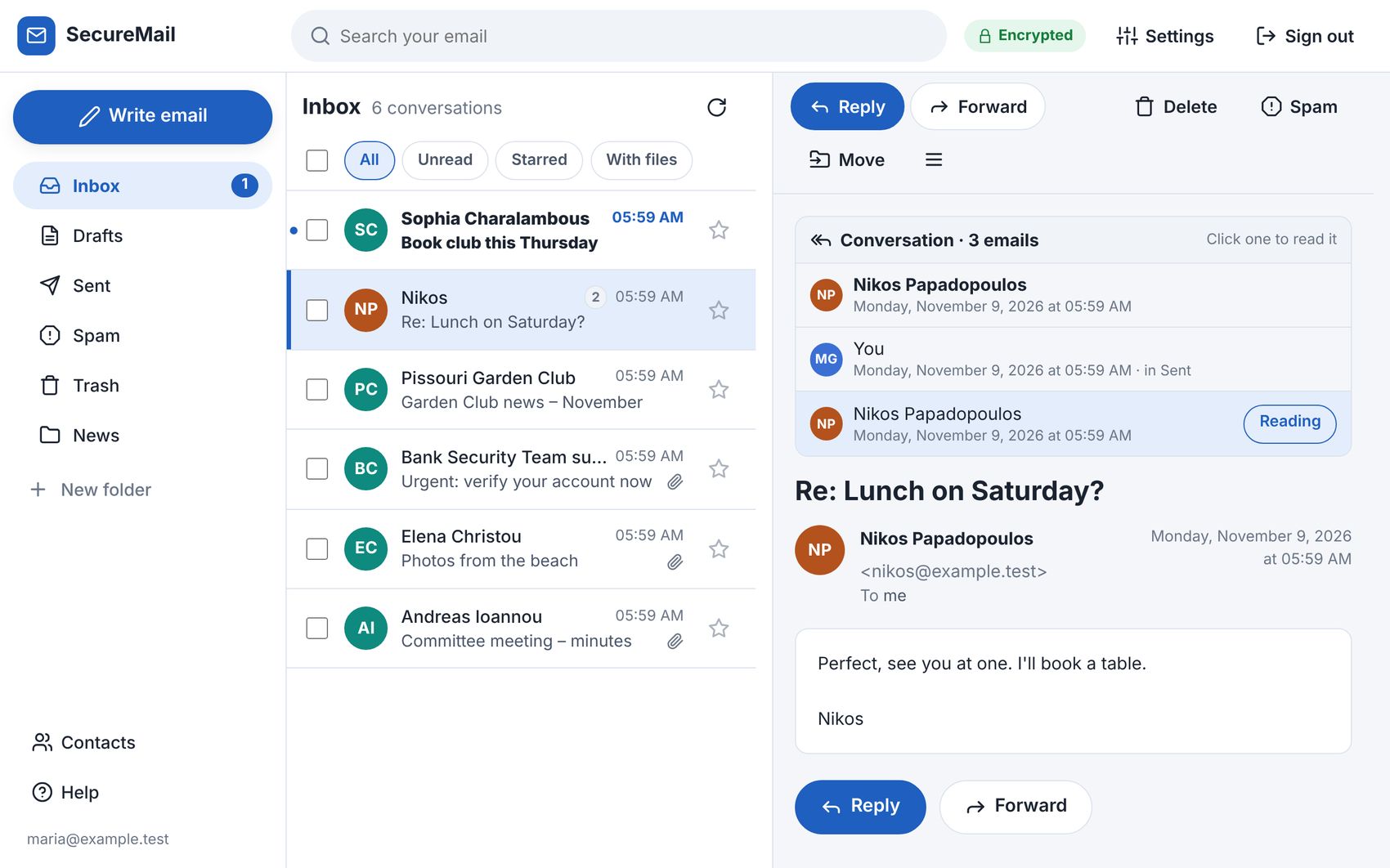
- Every email is checked for tricks, and the warning is in plain words: a sender pretending to be someone else, links that show one website but go to another, look-alike domains and dangerous attachments such as invoice.pdf.exe.
- Tracking pictures are blocked. Newsletters can’t tell when or where you opened them, and when you do show pictures they’re fetched through the webmail, so the sender never sees your location.
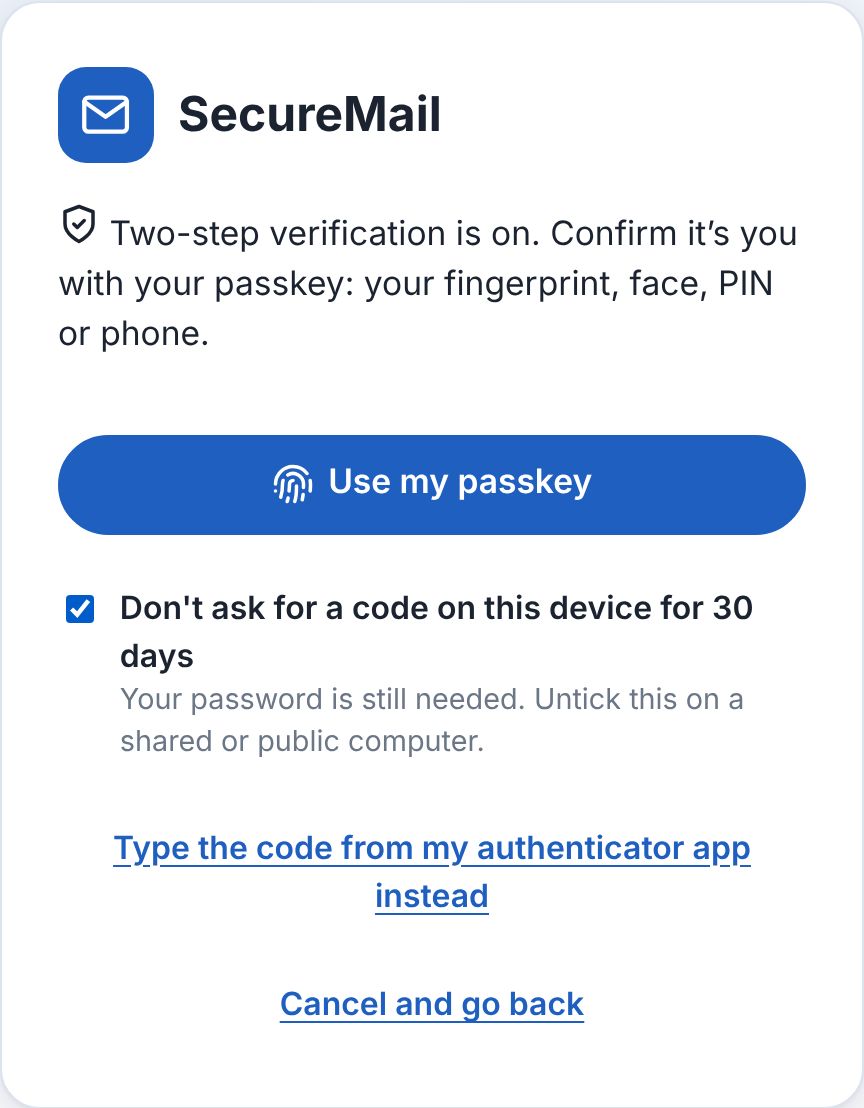
- Passkeys: once two-step verification is on, the second step can be your fingerprint, face or computer PIN instead of typing a code. Nothing about your fingerprint or face ever leaves your device, and a fake website can’t trick a passkey out of you.
- A nudge about weak passwords: if someone signs in with a password that’s easy to guess, a polite note suggests two-step verification, or at least a better password. Nobody is ever forced, and the password itself is never kept.
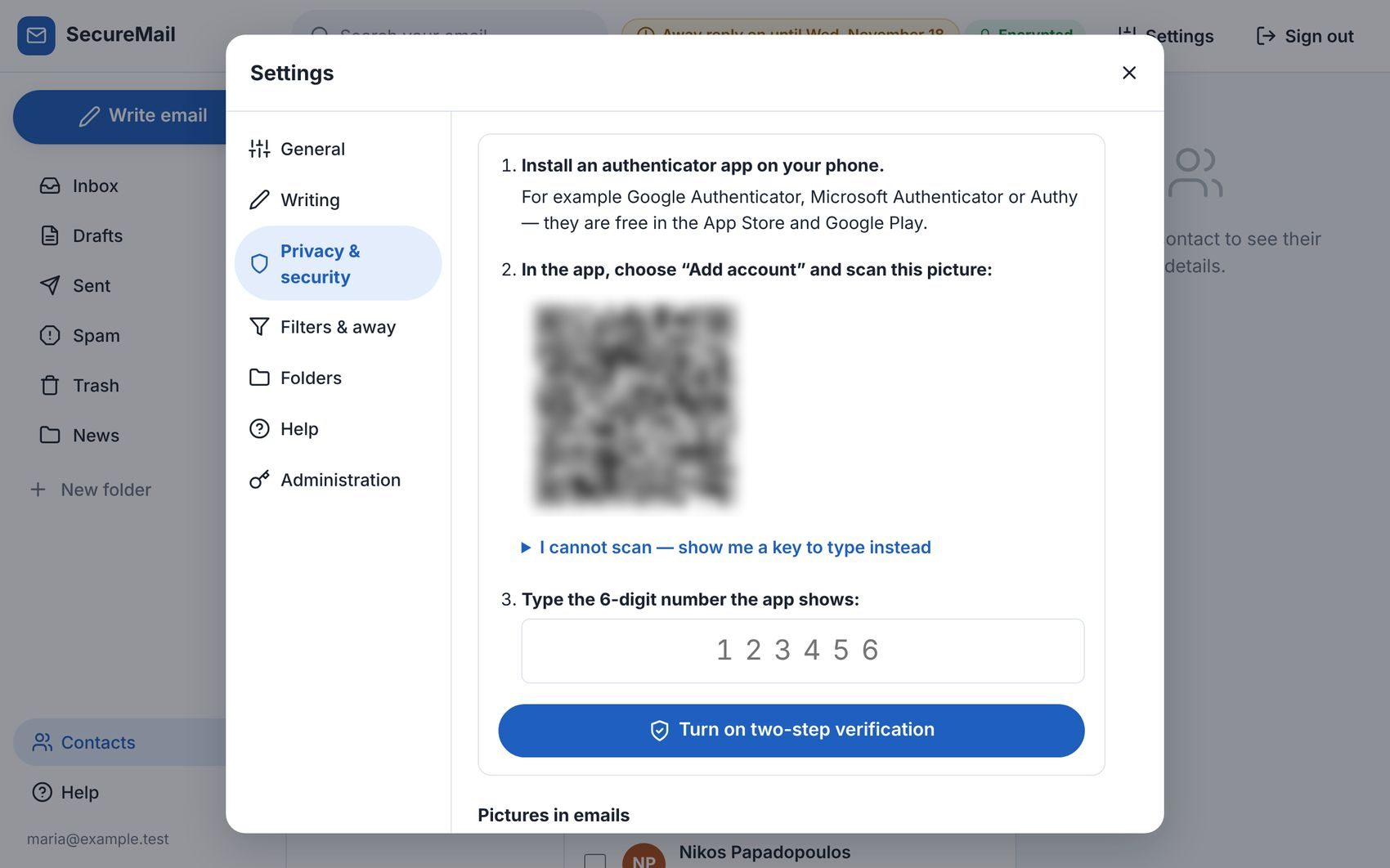
- Two-step verification with any authenticator app, recovery codes, remembered devices, an email when someone signs in from a new device, “sign out everywhere”, and automatic sign-out.
- Break-ins can’t hide: a filter that forwards your email elsewhere needs your password and sends you an email about it. Changing the mail servers or the administrators needs two-step verification and the password, and every administrator is told. Someone guessing passwords can’t lock the real owner out.
- Your password is never saved on the server. While you’re signed in it’s kept encrypted with a key that only exists in your own browser. Settings, address books and anything waiting to be sent are encrypted too, and the page runs under a strict security policy with no outside scripts at all.
Writing
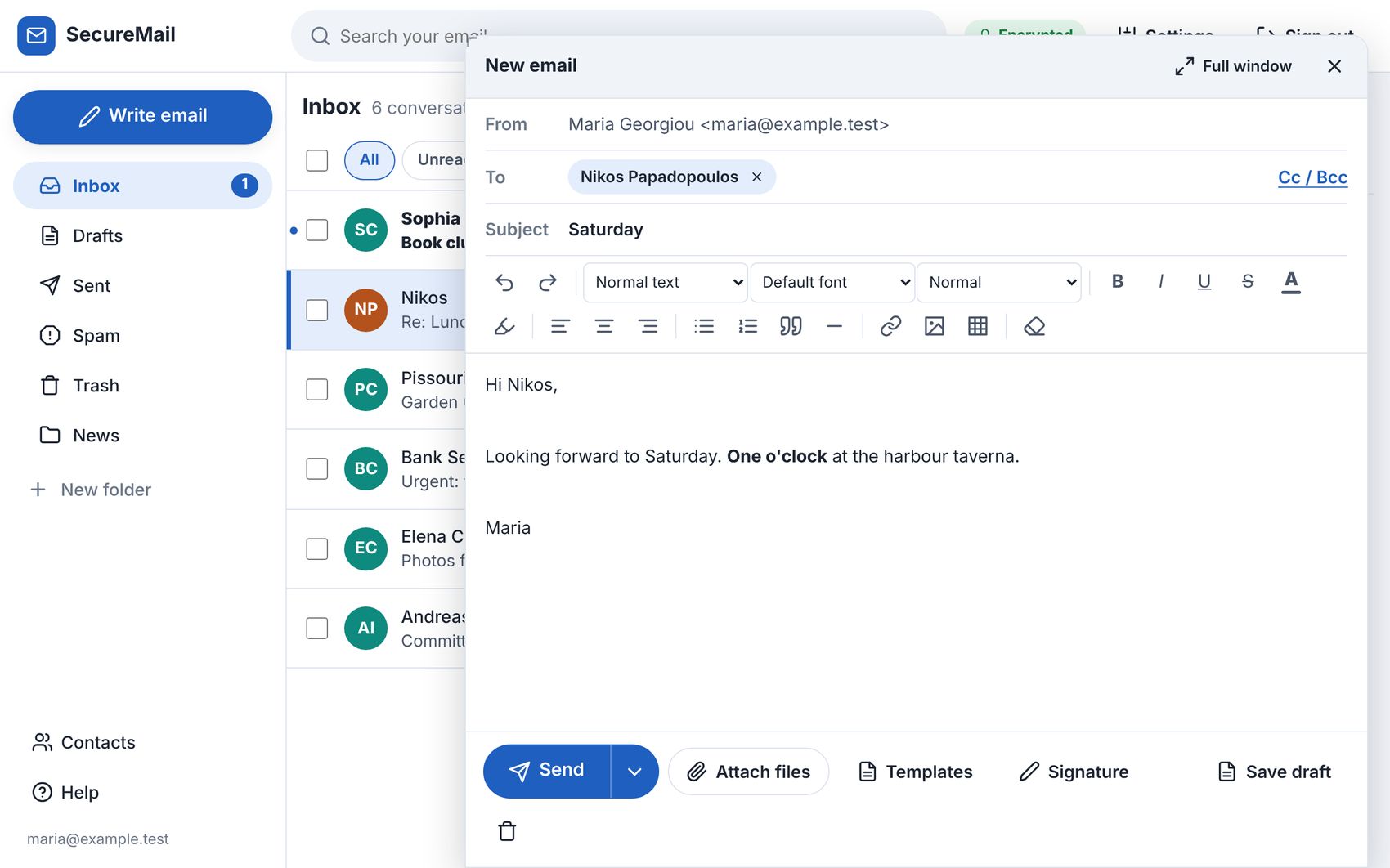
- A proper editor: fonts, sizes, colours, highlighting, lists, tables, links and clean pasting from Word.
- Pictures pasted or dragged into the text arrive inside the email, so they show straight away in Gmail and Outlook.
- Files too big to attach go as a private download link that expires.
- Several signatures, templates, and sending from your other addresses (info@ and so on, each confirmed with a code).
- Send later: tomorrow morning, Monday morning or any date and time.
- The writing window can be resized, made full size or moved out of the way.
Newsletters and group emails
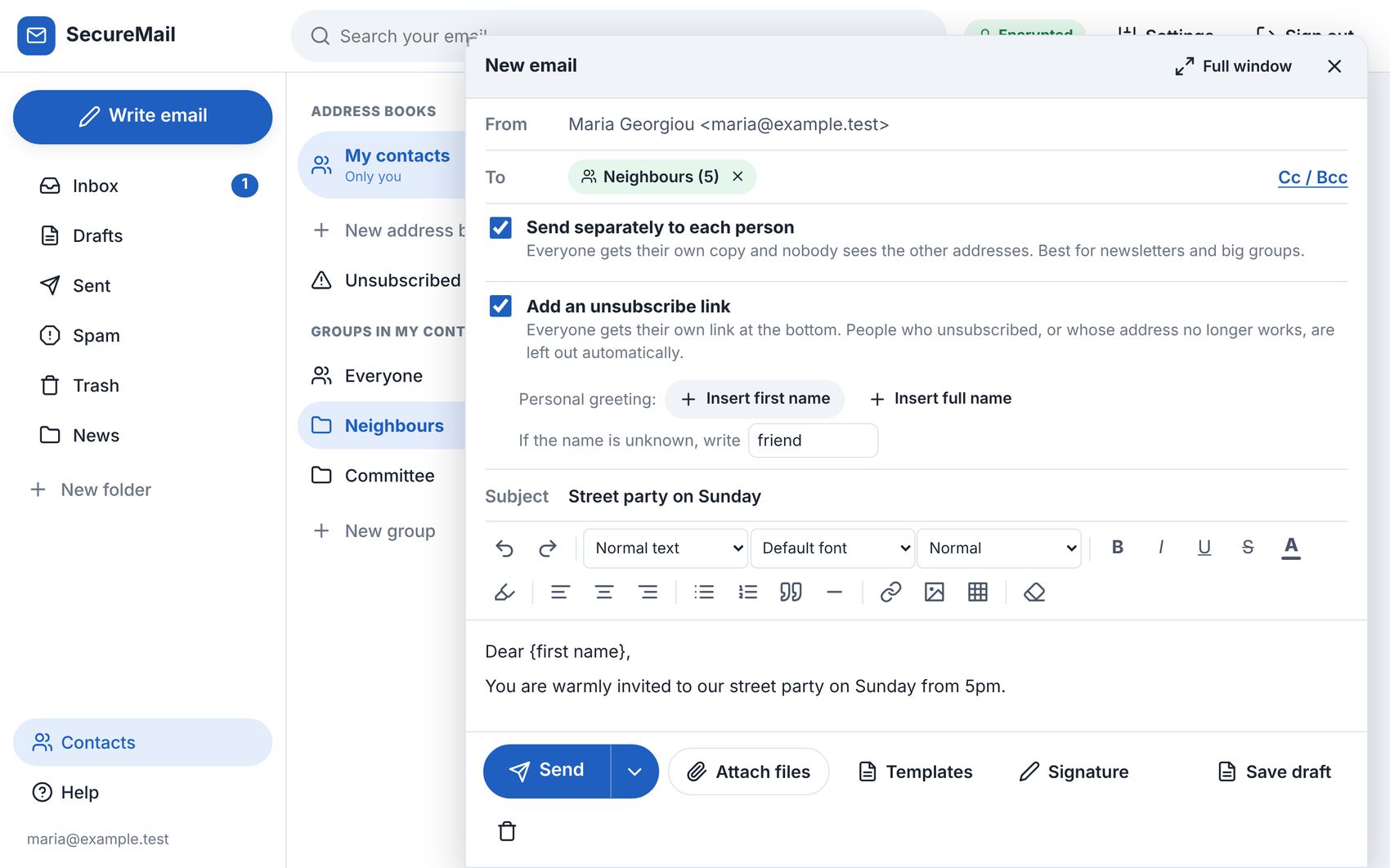
- Write to a whole group from the address book. Everyone gets their own copy, and nobody sees anyone else’s address.
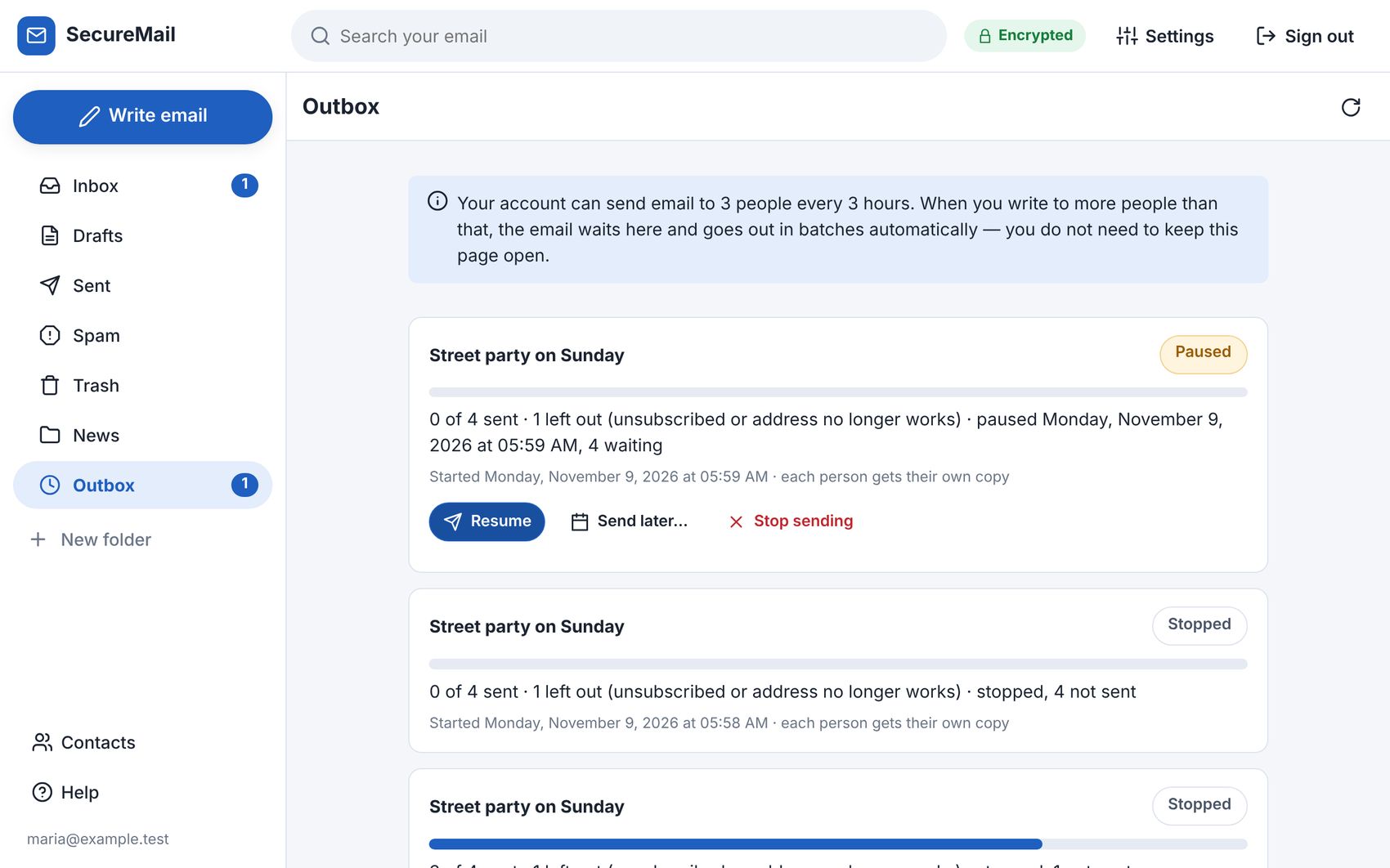
- Sending limits with batches. Hosting usually limits how many people you may email per hour. Instead of refusing a big email, SecureMail sends what it can and the rest goes out automatically in batches, even after you close the page. You can pause, resume or reschedule it in the Outbox.
- Unsubscribe links, personal to each person, plus the standard header so Gmail and Outlook show their own Unsubscribe button. People who unsubscribe are left out next time.
- Personal greetings: “Dear {first name}” becomes “Dear Nikos” in each copy.
- Bounced addresses are noticed and left out of the next group email.
Contacts, filters and the away reply
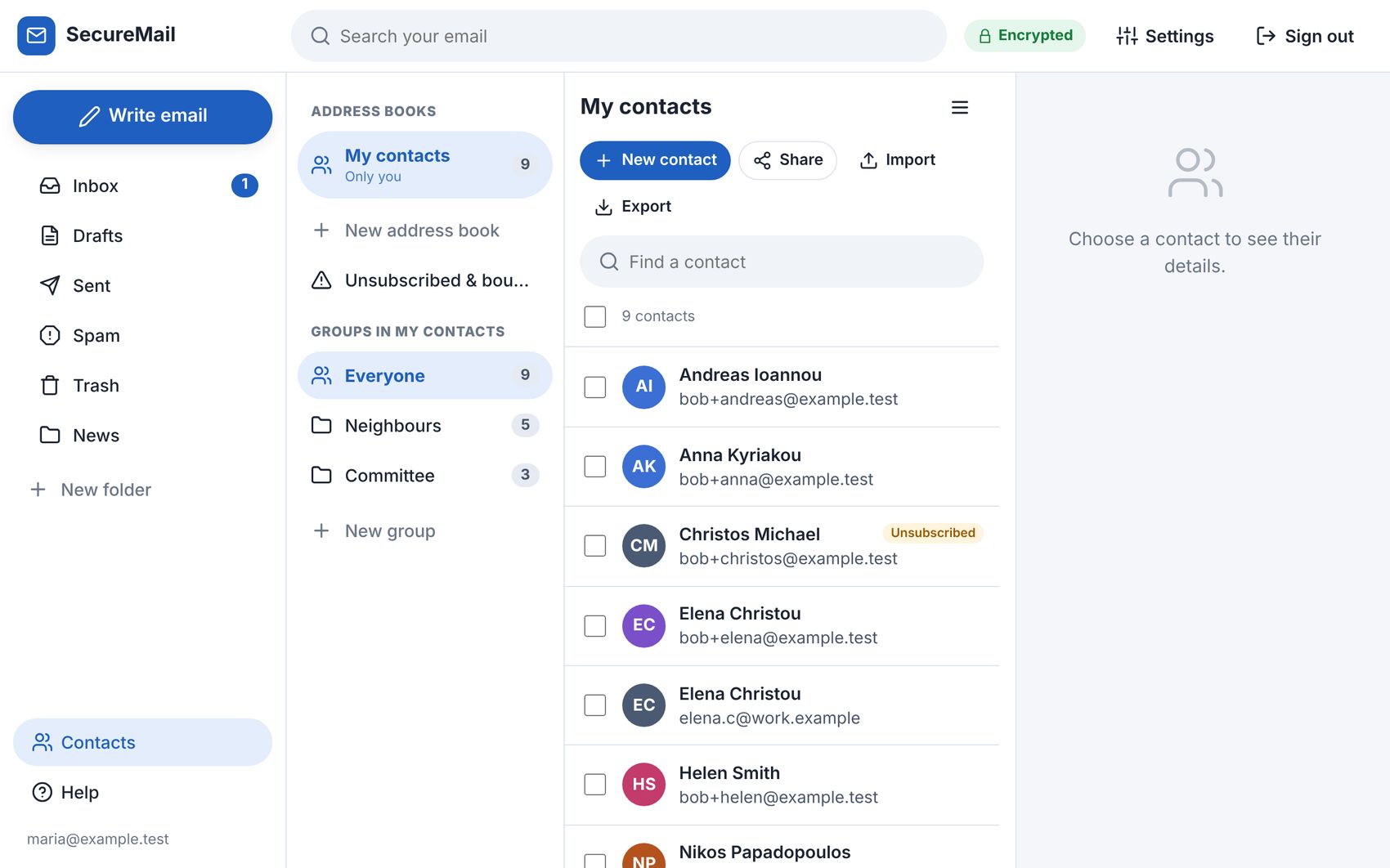
- Address books with groups, import and export (vCard and CSV), sharing with colleagues (view only or edit), and a duplicate finder that merges people listed twice.
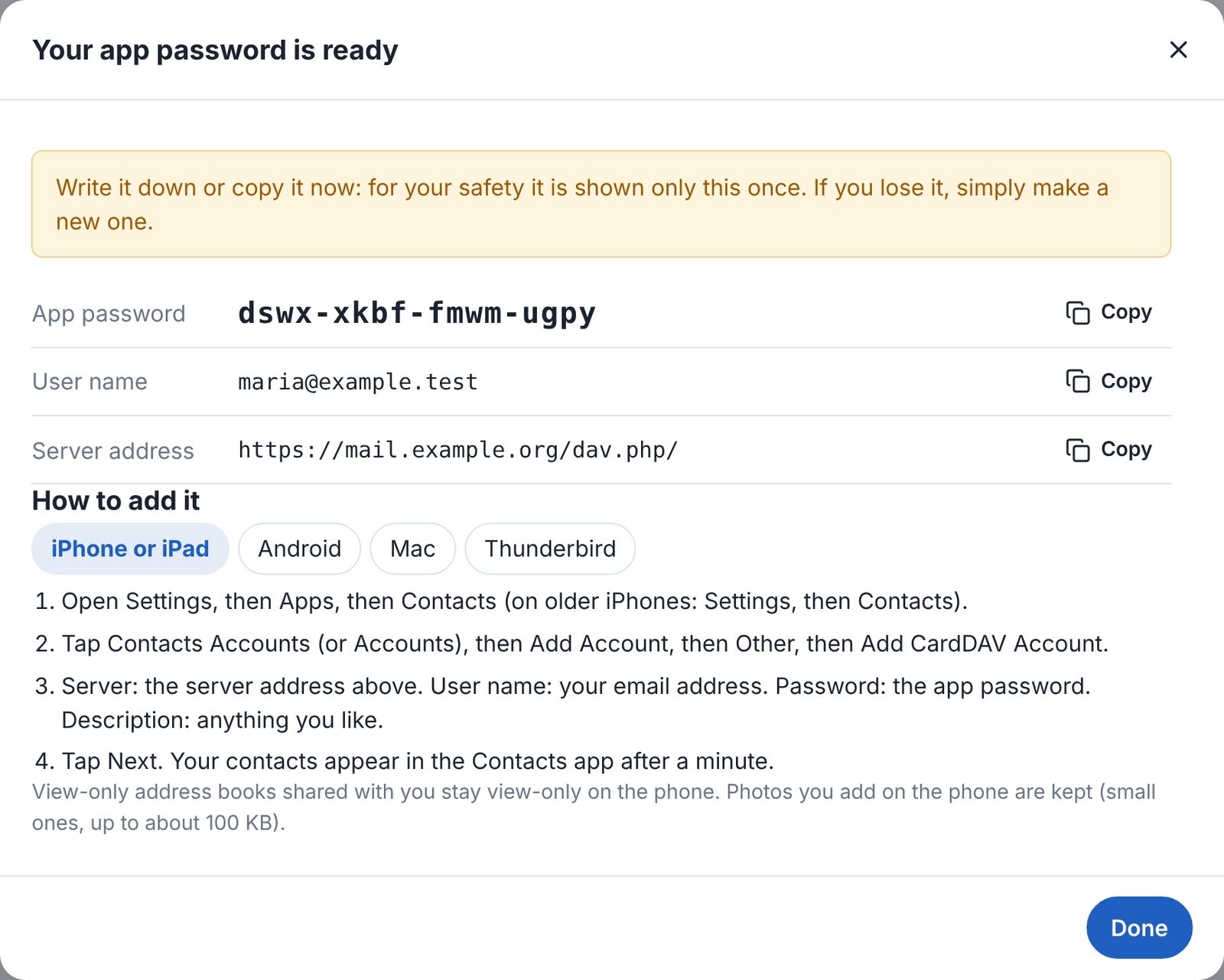
- Contacts on your phone: your address books, including shared ones, appear in the Contacts app on iPhone, iPad, Mac and Android (with the free DAVx⁵ app) and in Thunderbird, and changes go both ways (CardDAV). Each phone gets its own app password, so your real password is never stored on it, and a lost phone can be cut off with one click. The webmail shows the exact steps for each kind of device.
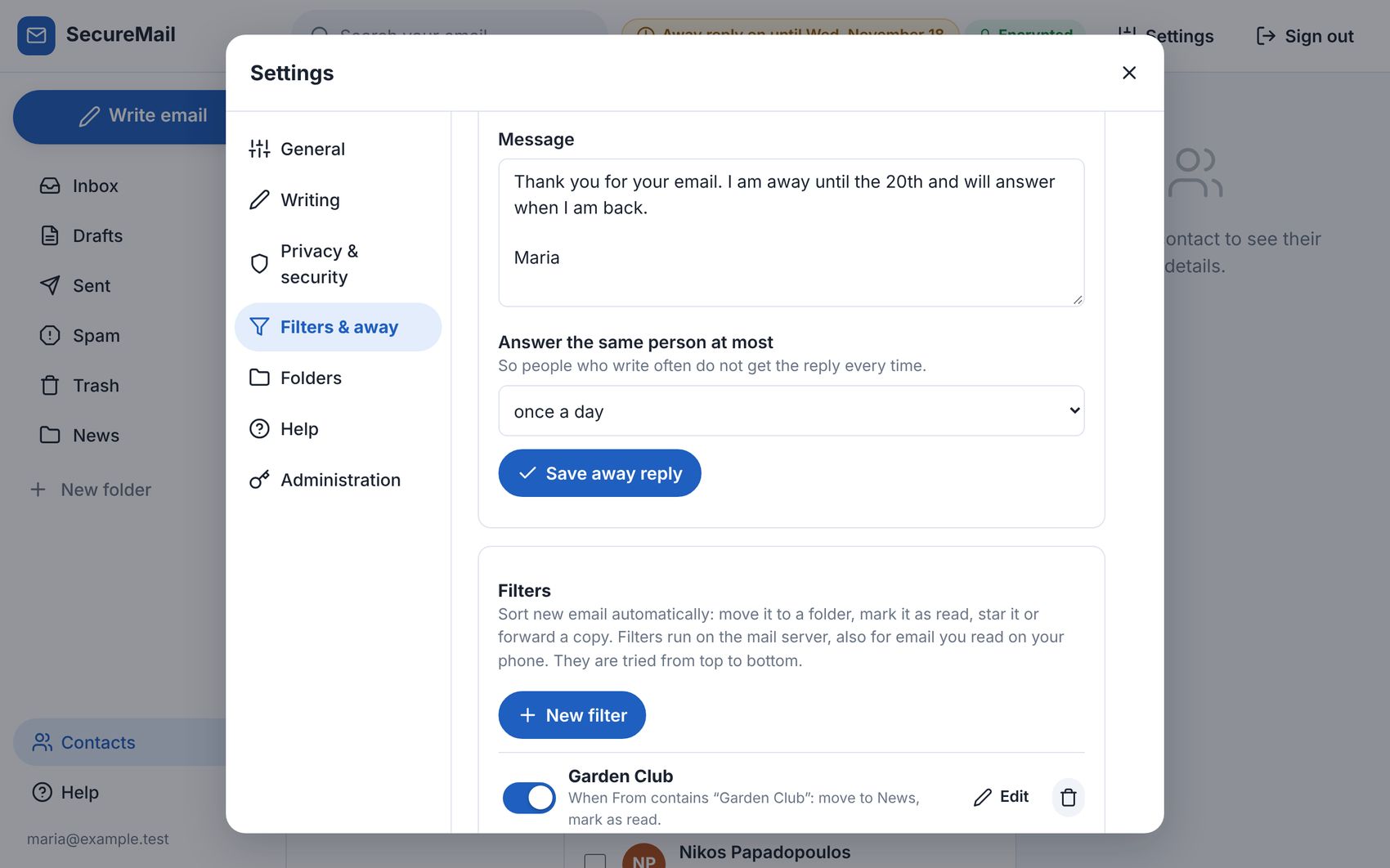
- Filters (move to a folder, mark as read, star, forward a copy) and an away reply with start and end dates. Both run on the mail server itself, so they keep working when nobody has the webmail open, and for email read on a phone.
For whoever runs it
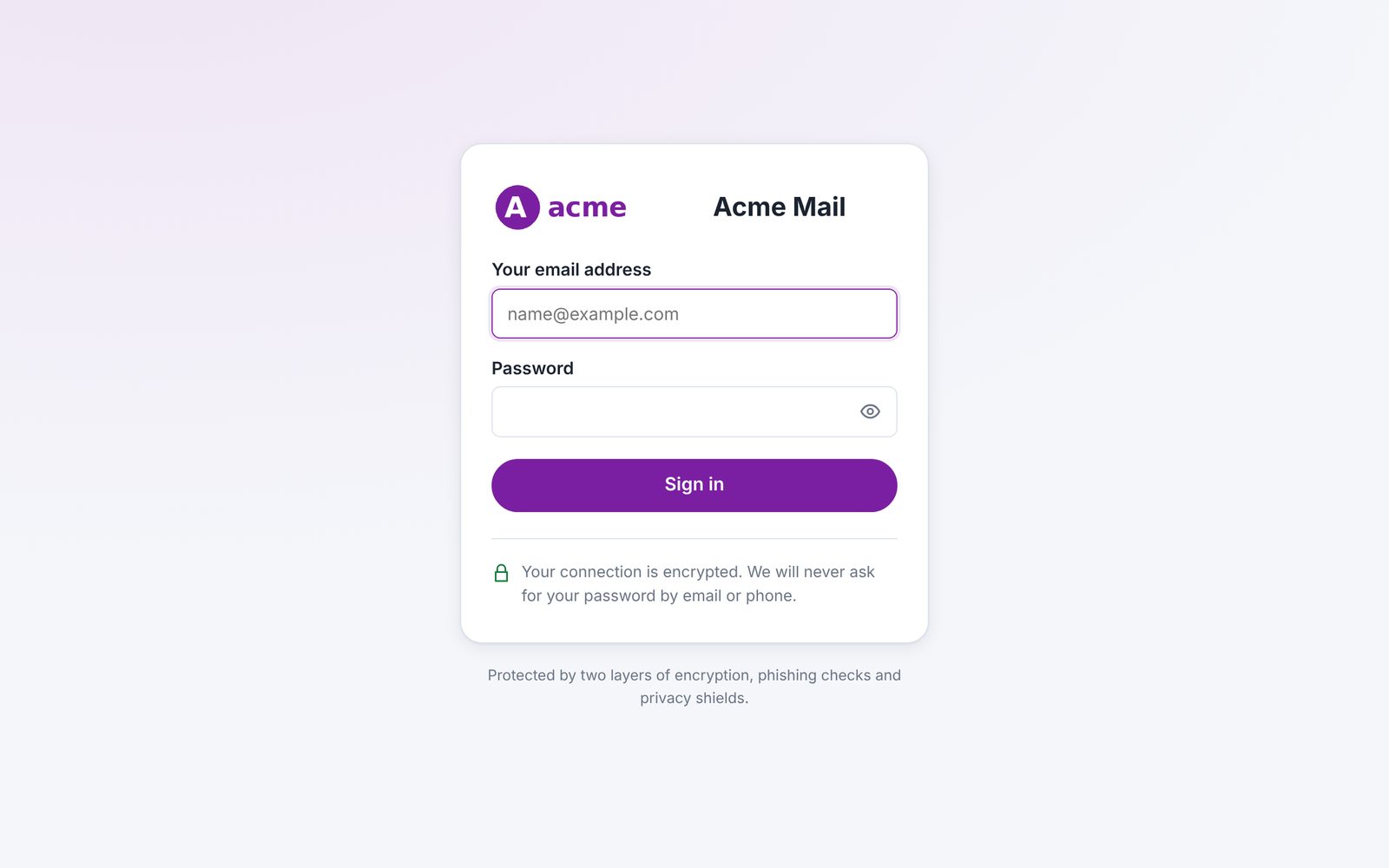
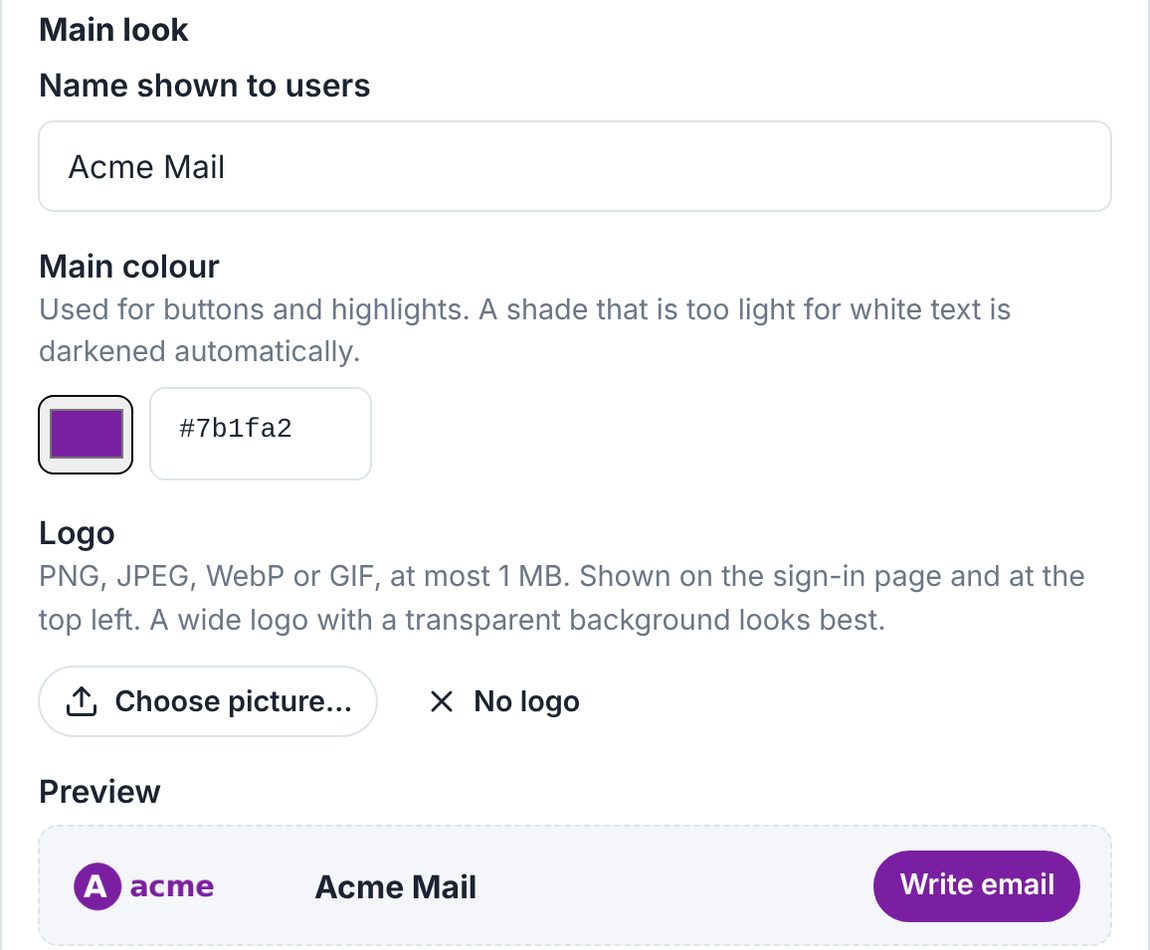
- Your own look: your name, logo and colour, and a different look for each email domain if one webmail serves several (say, your business and a club).
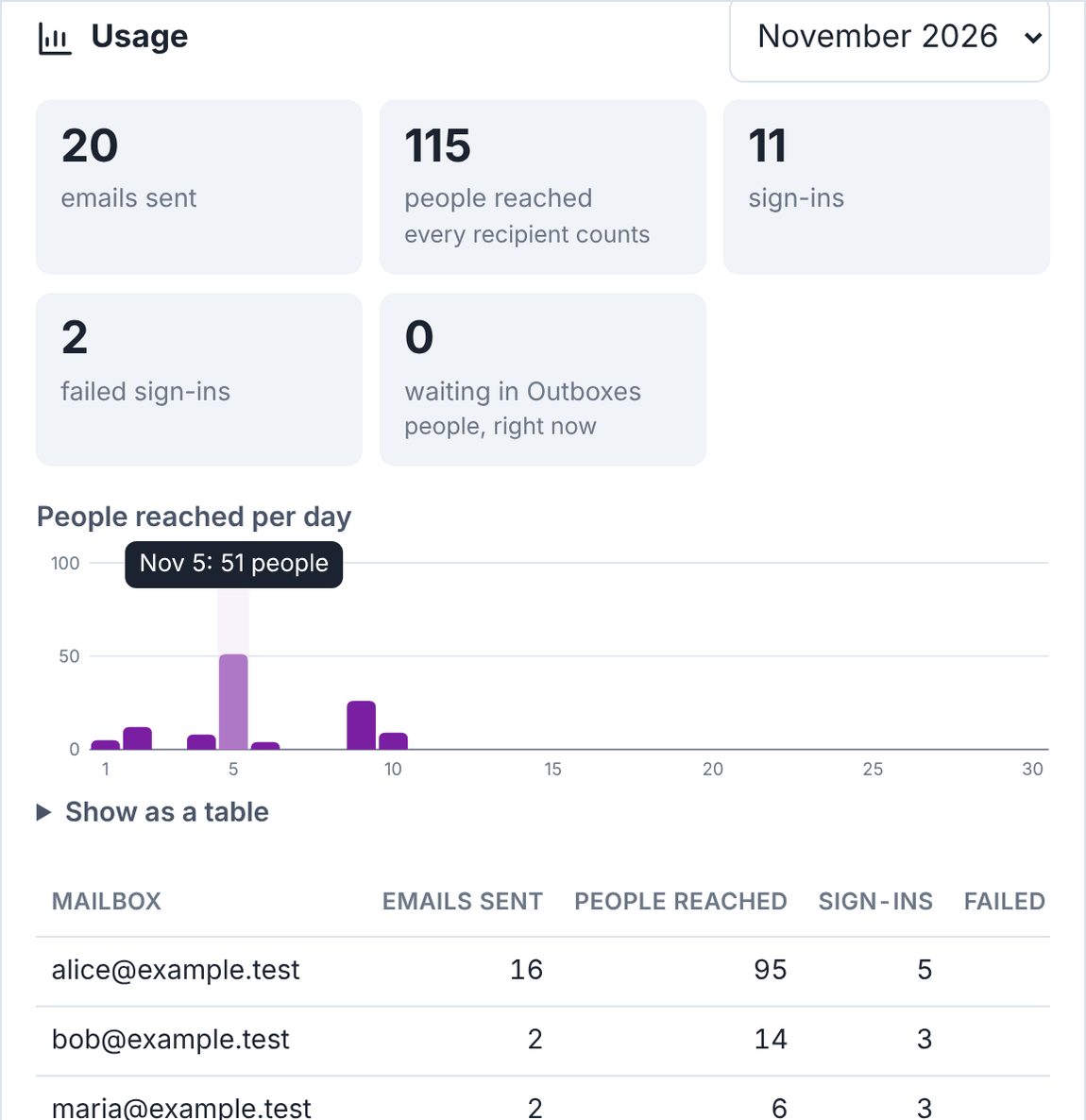
- A usage overview: emails sent, people reached, sign-ins and failed sign-ins per mailbox, by month. Only the numbers are kept.
- One-click updates that are signed, so a damaged or forged update is refused, with Undo if you change your mind.
- Encrypted backup and restore, a security summary, and a “Test mail servers” button.
Install it like an app
You don’t need to keep it in a browser tab. SecureMail can be installed as an app, with its own icon and its own window, on a computer or a phone:
- Chrome or Edge on a computer: open the webmail and click the small install icon at the right of the address bar (or the menu, then Install).
- Android: in Chrome, open the menu and choose Install app or Add to Home screen.
- iPhone and iPad: in Safari, tap the Share button, then Add to Home Screen.
The app carries your webmail’s own name and logo (or a different one for each domain, if you have set them up). It’s the same webmail, so there’s nothing extra to update: when the webmail is updated, the app is too.
It runs on any web server
SecureMail is plain PHP. There’s no database and nothing else to install, so it isn’t tied to Plesk: it runs on Apache, nginx, LiteSpeed or Caddy, under Plesk, cPanel, DirectAdmin or no control panel at all. You need:
- PHP 8.1 or newer, with the usual extensions most hosting has (sodium, openssl, dom, mbstring, curl, fileinfo and zip).
- A mail server with IMAP and SMTP. Dovecot and Postfix, which most Linux hosting uses, are perfect.
- A web address with HTTPS, for example mail.yourdomain.com.
- Optional: ManageSieve on the mail server for filters and the away reply (Plesk has it), and something that opens a web address every five minutes so that big emails go out in batches on time.
The catches
- It’s email only. There’s no calendar.
- It’s in English. Other languages may come much later.
- Filters and the away reply need ManageSieve on the mail server. Without it, those two features simply don’t show.
- Batches need a nudge. Something has to open a secret web address every five minutes: a scheduled task in your control panel, a cron job, a free service such as cron-job.org, or the small WordPress plugin below. Without it, waiting batches only go out while someone has the webmail open.
- Notifications only work while the webmail is open in a browser tab or as an installed app, because it never stores your password.
- Passwords are changed in your hosting panel, not in the webmail, because hosting panels don’t let anything else change mail passwords. The administrator can put a “Change my password” button in the webmail that takes people there.
- Passkeys and contacts on phones need HTTPS, which you want anyway.
- Updates come from this website. The webmail asks rkendall.com whether there’s a newer version, and only installs one when you press Install. Every update is signed and checked before it’s installed.
- I run the website version myself. The Plesk extension is built from exactly the same code, for anyone who is the administrator of their own Plesk server.
New in version 2.0
Version 2.0.2 adds security fixes from an audit of a live installation (below). Version 2.0.1 added the app’s own name and logo when it is installed, and the nudge about weak passwords. Version 2.0 brought:
- Passkeys: sign in with your fingerprint, face or PIN instead of typing a code.
- Contacts on your phone: your address books in the iPhone, Android and Mac contacts apps, in sync both ways.
- Changing your password: the webmail tells people where to do it, with a button the administrator can add.
Ideas for later, with no promises: a calendar that stays in step with your phone the same way contacts now do, and other languages.
Downloads
It’s free to download and use. Version 2.0.2 is the current one. If you already run SecureMail, you don’t need to download anything: Settings, then Administration, offers the update.
- SecureMail 2.0.2, website version (about 400 KB). For any web server. This is the one most people want. Check it if you like: SHA-256 and signature.
- SecureMail 2.0.2, Plesk extension (about 425 KB, SHA-256). Only if you’re the administrator of your own Plesk server: upload it under Extensions, then My Extensions, then Upload Extension. Everyone else should use the website version, which also works on Plesk hosting accounts.
- SecureMail Batch Sender (WordPress plugin, version 2.1.0, SHA-256 and signature). If you have a WordPress site anywhere, this keeps the batches going: paste the webmail’s scheduler address into Settings, then SecureMail, and it opens it every five minutes. It updates itself from this site, and only installs updates signed with my offline key.
- The user guide (PDF, about 3.5 MB, with pictures). A simple getting-started page, two-step verification and passkeys explained, setting up contacts on a phone, and every feature. It’s also linked from Help inside the webmail.
To install the website version: make a subdomain such as mail.yourdomain.com with HTTPS, set its document root to the public folder, unzip the download one level above it so that app, data and public sit side by side, then sign in with your own mailbox. Settings, then Administration, asks for a one-time setup code that’s waiting in data/setup-code.txt, which proves you own the hosting. The zip includes INSTALL.txt with every step, including examples for nginx and Apache.
If you try it and something doesn’t work, I’d like to hear about it.